From classroom
to blue water
Set a course up once, put every session on the calendar in one go and take attendance on your phone at the pool. Before anyone gets wet, DivePilot shows which students are ready and what is still missing.
Watch it in the videoEvery session,
in sequence
A course is a chain of sessions: theory in the classroom, skills in the pool, dives in open water. Its template keeps that chain together with the price and deposit, the forms students sign and the minimum age, all in one place, and a "Ready to sell" line says what is still missing.
- Open Water, Advanced and Rescue set up from day one, with sessions and minimum ages
- Sessions, price and deposit, forms and minimum age in one template
- Open water dives linked to boat trips
- Certification awarded automatically when the course completes
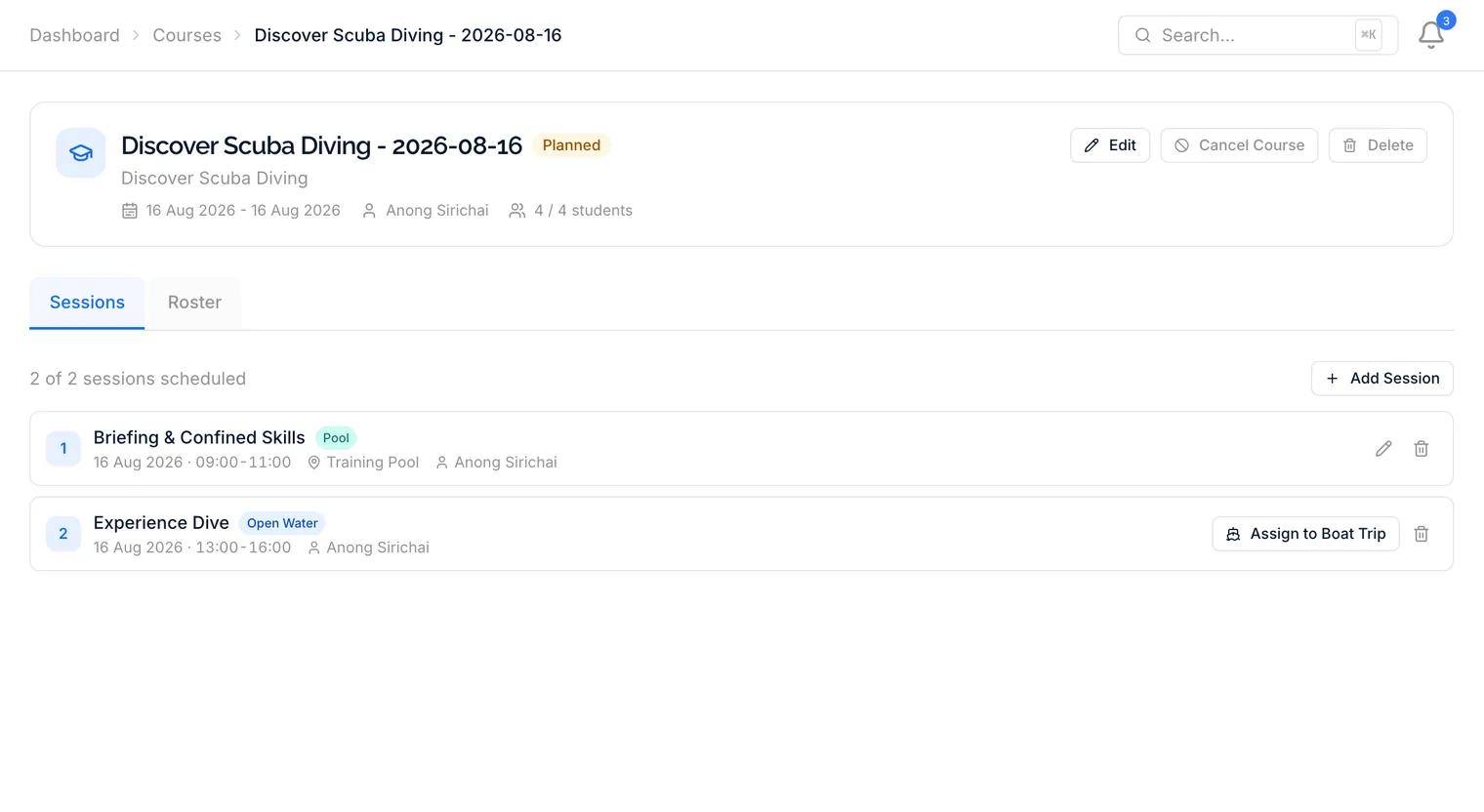
From the calendar to the pool deck
Put a course on the calendar in minutes, then run it session by session from your phone.
Schedule sessions
One dialog puts every pool and classroom session on the calendar and suggests a boat trip for each open water dive. Students take real seats on real boats, counted against real capacity.
Next runs and requests
"Plan next run" copies a course a week later. A guest's request for a date becomes a course in one click, and confirming a course booking enrolls the guest automatically when exactly one course matches.
Enrollment and walk-ins
Enroll students straight from your customer list, or add a walk-in as a new customer in the same enroll dialog. Someone below the course's minimum age is refused.
The course page
The course page opens with a progress line - which day it is, how many sessions are done, what comes next - above a "Plan" and a "Students" tab. The plan reads day by day, with each session's attendance and a "Take attendance" button.
Attendance on the phone
Instructors take attendance on their phones, in a session view with large "Present" and "Absent" buttons, students catching up from another course included. The marks show on every other device as they are made.
Make-up sessions
Seasick on dive day? Mark the absence and reassign the missed session to a later date or another running course.
Cleared before they get wet
Forms, cards, ages and contacts checked for every student, with the fix one click away.
The Ready chip
Every student carries a "Ready" chip in green, amber or red. It covers signed and valid forms, verified certifications, date of birth, minimum age, a parent or guardian for minors and an emergency contact.
One-click fixes
Each gap comes with its fix, such as "Send forms" for the missing ones or "Check certifications" for an unverified card. Medical answers are never shown here, only whether the form is signed.
Forms at enrollment
Enrolling a student sends a "You're enrolled" email with the forms still to sign. A minor's forms go to their parent or guardian.
Minors and emergency contacts
Every customer can have an emergency contact, and a minor a parent or guardian, who can sign waivers on their behalf. Each center sets its own age of majority, 18 unless you change it.
Asked first, then recorded
Marking a student who is not cleared present at a pool or open water session asks first. You can still go ahead, and DivePilot records who did and which forms were missing.
Counted where you look
The course header, the course list, active enrollments and the dashboard count the students not cleared, and the daily reminder names those due in the water tomorrow. The course list opens on "Next up", running courses first, and active enrollments can be searched by student or course.
Questions worth asking first
No. A course template holds the session structure once - classroom, confined water, open water - and every new course starts from it. New centers start with Open Water, Advanced and Rescue already set up, and "Plan next run" copies a course a week later.
Attendance is recorded per session. A missed one is reassigned to a later session or to the same session of another running course, where the student shows up on the instructor's list as catching up, without rebuilding the course or affecting the other students.
Each course has a primary instructor, and that is who the course is credited to when it completes - which is also who course commission is paid to if you use payroll.
In the template, under "Price and deposit", or in the price list: both show the same price. Each course template has a row in the price list with its price, season prices and included extras, such as an eLearning code charged on top with its quantity. With prices switched on, guests booking the course online see the course price and an estimate with those extras.
By the "Ready" chip next to their name. Green means nothing is missing; amber or red lists what is, such as a form not signed or expired, a certification not checked yet, a date of birth, a parent or guardian for a minor or an emergency contact. The dashboard counts the students not cleared, and the daily reminder names those due in the water tomorrow.
Yes, from the minimum age you set on the template: 10 for Open Water and 12 for Advanced and Rescue in the templates you start with. Someone younger on the course start date cannot be enrolled. A student under your center's age of majority has a parent or guardian on file, who receives the forms and signs them on the student's behalf.
Teach the class, skip the admin
Open Water, Advanced and Rescue are already set up in the trial. Schedule your first course and watch the whole plan fall into place.